 COME
COMECompare COME Sessions Across a Browser and Android App
Establish the intended account in each surface before comparing records; matching appearance does not guarantee matching session state.
One surface shows different account context from the other.
Name the surface before comparing its state
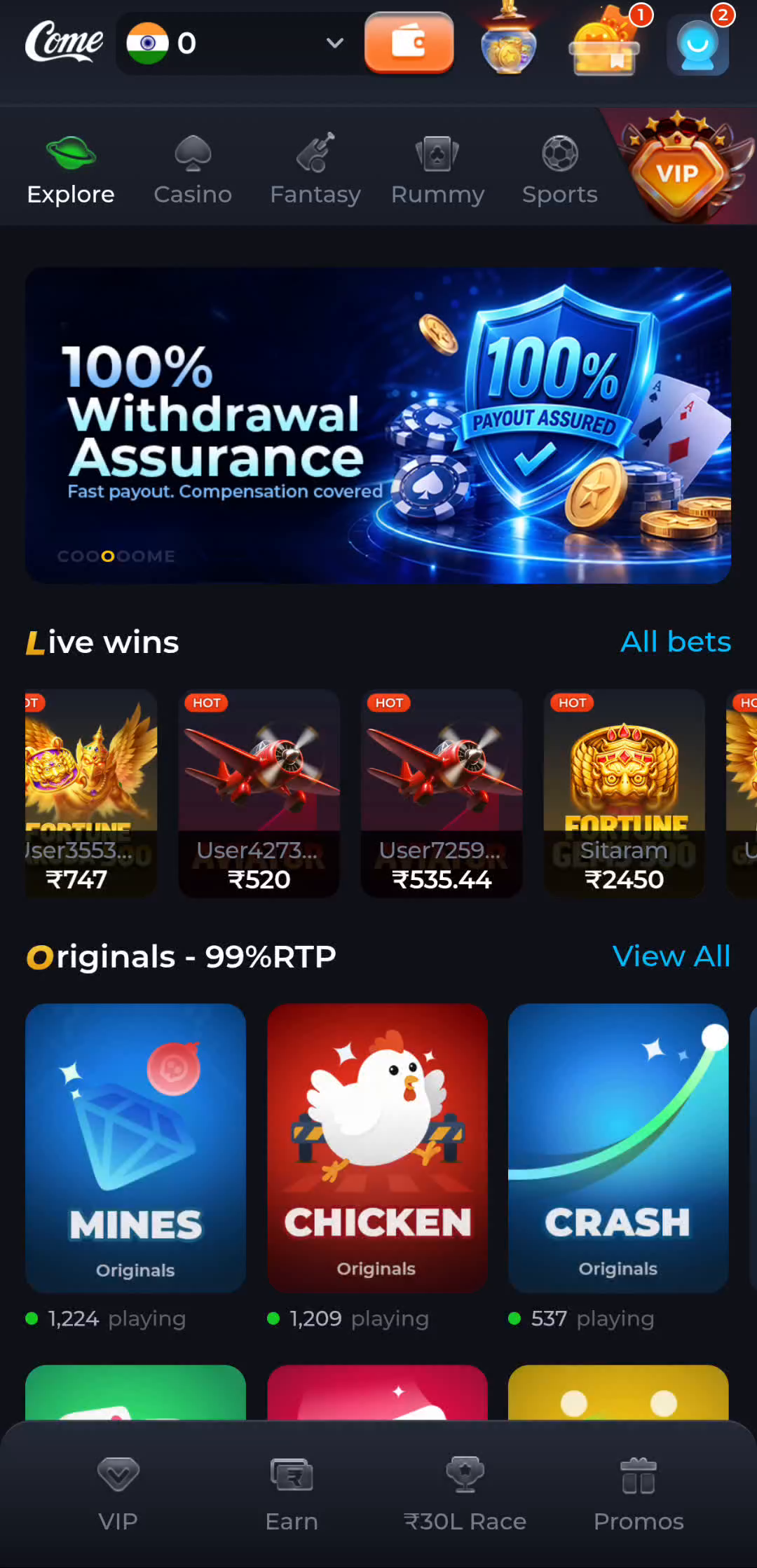
A COME product screen can appear inside a browser or an installed app. Start with how the screen opened, the browser address when present and the device’s application information. A familiar category row helps you navigate the product, but its appearance alone does not prove that two windows share one session.
A saved bookmark or home-screen shortcut concerns how you reach a page. It is not the account itself. Likewise, a completed Android installation concerns software on a device. Account access remains a separate step. Keeping those objects distinct makes an apparent difference between two screens easier to describe.
Establish the intended existing account
If you are returning, use the product’s own existing-account route. Read any masked account destination and visible profile context before comparing personal records. Do not create a new account merely because a second surface asks you to sign in; that could leave you comparing two different identities.
Browser profiles, ordinary and private windows, and an installed app can have separate local state. That general distinction does not prove how any particular COME feature synchronises. Observe the account context actually shown on each surface rather than promising that a login or preference will automatically carry across them.
Compare the same type of record
The profile menu distinguishes Account, Transactions and Game History. Choose the same record type and relevant period when comparing two views. A catalogue screen is not a personal history, and a shown promotional amount is not an account transaction. Keep the screen heading beside the value you are trying to interpret.
For a hypothetical example, one browser window is still at a public product view while an installed app shows a signed-in history screen. Those displays answer different questions. First establish the intended account and record context; installing another package does not reconcile the difference by itself.
Change one thing at a time
Record the current surface, task and exact message before changing an entry method. Avoid clearing browser data, app storage or a working installation as a default repair. Those actions can remove useful local state or make account recovery harder while leaving the original identity question unanswered.
If a verification code is missing, follow the product’s current code-help and timing controls. If a password is forgotten, use its login recovery route. If a screen stalls, describe that loading symptom. These are different problems and should not all be described as a failed download or an address change.
Finish with a known account and task
The useful completion check is that you can name the surface, intended account and record you are reading. If the relevant record still differs after that, ask about that specific result through the product’s own help context. Keep passwords, OTPs, payment PINs and session-bearing URLs out of the report.
A first visit can stop after orientation. Learning a category or finding a help control is a complete task without participation in an activity. When an action has consequences or a pending result, inspect the current state before repeating it; another confirmation is not a harmless way to test a session.
A practical completion check
- Name the browser, shortcut or installed-app context currently open.
- Use the intended existing-account route and confirm the relevant profile context.
- Compare the same record type and period before reporting a remaining difference.
If a browser shows a sign-in page and an app shows a history list, preserve both observations. They do not establish data loss. The useful next step is the unresolved account or record task, not automatically another download.
Questions about this task
Does a bookmark preserve my COME account?
It stores a destination. Account session state is a separate matter and must be observed in the product.
Should I reinstall to make two histories match?
First identify the intended account and record context. Reinstallation cannot explain two different identities or screen types.
A related next step
Use the current browser context and device application information to identify the surface before assuming software was installed.